Zendesk Best Practice: Knowledge
Zendesk Knowledge Best Practice: Top Tips for an Awesome Help Centre Your Help Centre feeds your AI agent, shapes your self-service rate, and either reduces or adds to your ticket volume every day. Practical tips for a cleaner, more effective Zendesk Knowledge setup.

Your Help Centre is doing more work than you think. It's not just a place customers land when they're stuck. It's feeding your AI agent, shaping your self-service rate, and either reducing or adding to your ticket volume every single day. Getting it right isn't just a nice-to-have.
One thing worth flagging upfront: this article is about your Help Centre setup and content strategy, not about how to write great articles. That topic deserves its own piece, and one is coming. Think of this as everything around the content, and a bit about the content structure itself.
TLDR
- One article, one question. Split anything that tries to do more.
- Keep your category structure lean. Use custom grouping if you need more depth.
- Visuals are great, but always pair them with text. AI and search can't read images.
- Assign an owner. Agents are usually the right choice over marketing teams.
- Set review reminders you'll actually action. Realistic cadences beat ignored ones.
- Check your analytics and let the data shape your content roadmap.
- Make your Help Centre public unless there's a real reason not to.
- Link to it before the contact form, not just alongside it.
- Update your homepage content regularly. It's not a one-time setup.
- Promote it everywhere. Email footers, onboarding, product docs. All of it.
Keep articles focused on one question
The best articles answer one question. The title is the question, the content is the answer. If you find yourself writing "and also..." halfway through, that's a new article. Splitting content up feels counterintuitive but it improves search results, makes AI responses more accurate, and means customers land on exactly what they need rather than scrolling past things that don't apply to them.
Don't let your category structure get out of hand
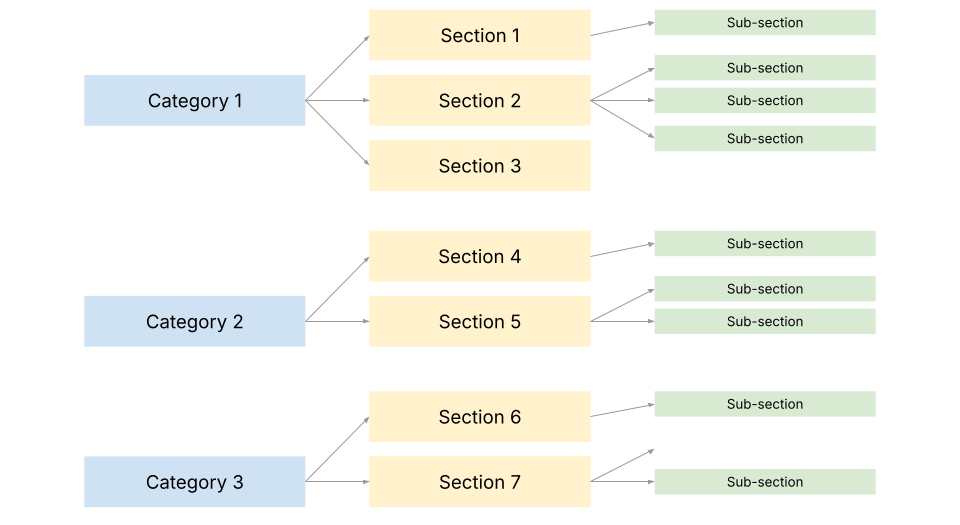
Categories are how users navigate when search fails them. If there are too many, or they overlap, users give up. Keep your top-level categories to a minimum and be ruthless about what belongs where. If you genuinely need a larger structure due to product complexity, consider using custom code to group categories into separate buckets on the homepage so it doesn't look like a wall of options.
Use visuals, but always add text to go with them
Screenshots, GIFs, and short videos make articles easier to follow. Use them. But always write out what's happening in the visual, even briefly. This is good practice for accessibility, and it also allows Zendesk's AI features to actually read and surface that content.
Give your Help Centre an owner
A Help Centre without an accountable owner slowly becomes outdated, inconsistent, and less useful. Someone needs to own the cadence of reviews, new content creation, and flagging what's no longer accurate. The best person for this role is usually a senior support agent, not a marketing team. Agents know what customers are actually asking. Marketing teams know how to make things sound good. If both are involved, a publishing workflow where marketing reviews tone before articles go live is a clean middle ground.
Set review reminders you'll actually follow
Zendesk lets you set publication review reminders on articles. Use them, but only if your team has the capacity to act on them. A backlog of ignored review notifications is worse than no reminders at all. It's better to review ten articles thoroughly once a quarter than to have thirty articles flagged and untouched. Be honest about your team's bandwidth and set a cadence that's realistic.
Check your analytics and act on them

Zendesk Knowledge gives you useful data: what users are searching for, which articles they're reading, and which articles are getting downvoted. This is a direct line to your content gaps. Review this regularly and make sure the person reviewing the data is the same person or team creating content. The loop between data and content only works if those people are talking to each other. For more depth, you can connect Google Analytics through the Help Centre settings.
Let signed-in agents see the request form
This is a small one but it catches people out. By default, agents who are signed into Zendesk can't see the end-user request form in the Help Centre. Turning this on means agents can check the customer experience without opening a private window every time. It takes two minutes to enable and removes a small but constant friction point for your team.
Consider making it public
Some companies keep their Help Centre behind a login to protect product information. That's a valid call in some industries. But in most cases, a private Help Centre means lower self-service rates and higher ticket volumes, because customers who can't find answers without logging in will just contact you instead. It's worth weighing the actual risk of making content public against the volume cost of keeping it locked.
Link to it from the right places
Your Help Centre only reduces ticket volume if people find it before they hit the contact form. A dedicated FAQ or Support page that routes users to the Help Centre first is a simple way to create that moment. Not every company will want this depending on their service model, but if you're trying to improve self-service rates, the path matters as much as the content.
Keep your homepage content fresh
Most Zendesk themes give you a customisable homepage with featured articles, banners, or highlighted categories. This is valuable real estate. If it's set up once and never touched, it stops reflecting what's actually useful or timely. Whoever owns the Help Centre should have a regular reminder to check that the homepage is pointing users toward current, relevant content.
Actually promote it

This is the most overlooked one. A great Help Centre doesn't sell itself. Make sure it's linked clearly in your email footers, mentioned in automated responses, referenced in onboarding flows, and visible from your website header or footer. If your product has physical components, the manual is a good place too. Every touchpoint where a customer might have a question is a touchpoint where you can point them to self-service.